You're sitting behind your decks, the cue points are locked, and you've got a set you know will move a room. The only problem? There's no room. In 2026, the dance floor is wherever your audience is listening from — and if you want to know how to broadcast a DJ set live, the good news is that the gear and software have never been more accessible.
Whether you're aiming for Twitch, YouTube, or a digital radio platform like Grooveline, the core setup is the same. This guide walks you through everything — from the equipment you need to the moment you hit "Go Live." No fluff, no gatekeeping. Just the practical steps.
What You'll Need: Equipment Checklist
Let's get this straight up front: you don't need a professional studio to start broadcasting. Here's the minimum viable setup, plus the upgrades worth considering once you're ready.
Essentials
- DJ setup — controller, turntables, or CDJs plugged into a mixer
- Computer — any modern laptop or desktop capable of running OBS Studio
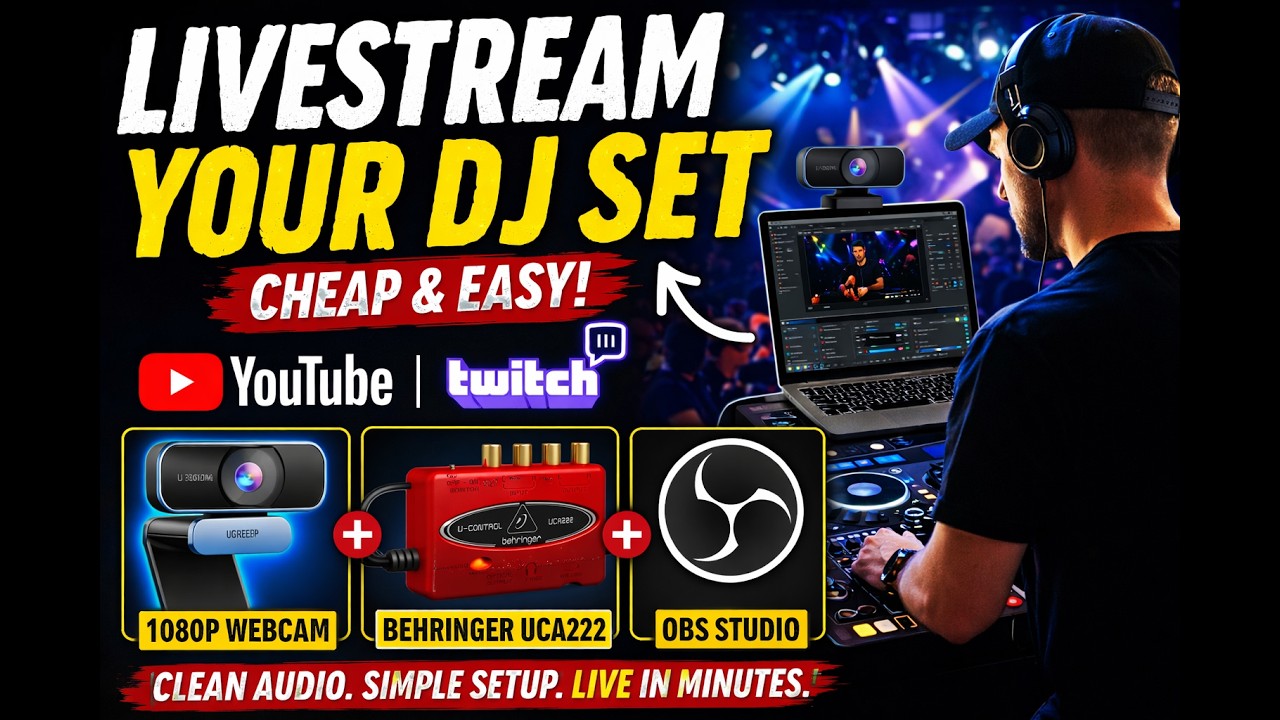
- Audio interface or capture card — to get clean audio from your mixer into your computer. The Behringer UCA222 or Focusrite Scarlett series are solid entry points.
- Cables — RCA or 1/4-inch TS from your mixer's record/master out to your audio interface
- Broadcasting software — OBS Studio (free) is the standard. We'll cover this below.
- Internet connection — wired ethernet is strongly recommended. Aim for at least 10 Mbps upload for 1080p streaming.
Nice to Have
- Webcam — a 1080p webcam like the Logitech C920 or a DSLR/mirrorless camera with a capture card
- Lighting — even a cheap ring light makes a huge difference to video quality
- Headphones — for cueing, separate from your stream output. Closed-back headphones prevent audio bleed into the stream.
- Microphone — if you want to talk to your audience between tracks. A Shure SM58 or a simple lavalier mic works fine.
If you're just starting out, the biggest mistake is overcomplicating the setup. A laptop, a controller, a $30 audio interface, and OBS is enough to get your first broadcast out the door. You can upgrade as you go.
Software Options for Broadcasting
Your software stack has two layers: the tool that captures and encodes your stream (broadcasting software), and the tool you DJ with (DJ software). Some DJ software can also encode and send a stream directly — more on that in a moment.
OBS Studio — The Industry Standard
OBS Studio is free, open-source, and the backbone of practically every live DJ stream you've ever watched. It handles video compositing (webcam, DJ software window capture, overlays), audio mixing (multiple input channels with filters), and encoding to whatever bitrate and resolution you need.
Why OBS works for DJs:
- You can add multiple scenes — a full DJ booth shot, a close-up on the decks, a "now playing" overlay — and switch between them live
- Audio routing is granular. You can send your DJ mix to the stream, have a separate mic input for commentary, and adjust levels independently
- It supports hardware encoding (NVENC, AMD, Apple Silicon) so your CPU doesn't melt while you're mixing
- Plugins like Move Transition, StreamFX, and Audio Monitor extend what you can do without leaving OBS
For a deeper dive on OBS specifically for DJs, check out our complete OBS guide for DJs.
Mixxx — DJ Software with Built-in Broadcasting
Mixxx is a free, open-source DJ application that has a killer feature for broadcasters: native Icecast and Shoutcast streaming. You can connect Mixxx directly to a streaming server without any additional software. We covered it in our roundup of the best DJ software for live streaming, and it's especially popular with internet radio DJs.
Mixxx supports:
- Direct Icecast/Shoutcast streaming from the preferences panel
- Built-in BPM detection, key analysis, and syncing
- Four decks, effects, and a sampler
- Works with most DJ controllers out of the box (HID and MIDI)
The trade-off: Mixxx doesn't handle video. If you want to show your face, your decks, or any visuals, you'll want OBS in front of your stream to composite everything together.
Other Options
- Traktor Pro 4 — Native Instruments' flagship includes built-in streaming via Icecast. It's polished but costs money and doesn't do video either.
- Virtual DJ — has its own streaming integration and supports video effects, but the free version adds noise every 30 minutes unless you pay.
- Serato DJ Pro — no built-in streaming. You'll need OBS as a bridge.
Audio Setup: Getting Your Sound Right
This is where most first-time broadcasters hit problems. The audio chain needs to be clean, correctly leveled, and routed to the right place. Here's how to do it.
Step 1: Connect Your Mixer to Your Computer
Take the master output (or record output) from your DJ mixer and connect it to the input of your audio interface using RCA or 1/4-inch cables. Then connect the audio interface to your computer via USB. If you're using a DJ controller with a built-in sound card, you can skip the external interface — just make sure your computer sees the controller as an audio input device.
Step 2: Route Audio in OBS
In OBS, add an Audio Input Capture source and select your audio interface (or DJ controller) as the device. This captures your master mix. Right-click the audio mixer in OBS and set Audio Monitoring to "Monitor and Output" if you want to hear it in your headphones for troubleshooting.
Key settings:
- Sample rate: 44.1 kHz or 48 kHz — both are fine, just be consistent across all your devices
- Bitrate: 128-192 kbps for stereo MP3/AAC streams. If you're streaming to an Icecast server that supports OGG, 160 kbps OGG Vorbis sounds noticeably cleaner.
- Gain staging: Keep your mixer's master output around -6 dB to -3 dB on the meters. Hot signals clip, and clipped audio can't be fixed after encoding.
Step 3: Add Compression and Limiting
Add a VST compressor plugin or use OBS's built-in compressor filter on your audio source. A 3:1 ratio with a -6 dB threshold will even out the dynamics between quiet breakdowns and loud drops. Add a hard limiter at -2 dB to prevent digital clipping. This is standard practice for any broadcast — radio stations have been doing it for decades.
Video Setup: Looking Broadcast-Ready
Audio quality matters more than video for a musical broadcast, but people do watch. Here's how to set up a video feed that doesn't look like a 2010 webcam stream.
Camera
A 1080p webcam with good lighting will outperform an expensive DSLR in a dark room. Position your camera at eye level — not looking up your nose. If you're using a phone as a webcam, apps like Camo or Iriun work over USB and give you clean video without compression artifacts.
Lighting
One key light placed 45 degrees to the side of your face, slightly above eye level. A second fill light on the other side at lower intensity. This is the three-point lighting system minus the backlight, and it costs under $50 on Amazon. It will immediately make your stream look ten times more professional.
Scenes in OBS
Set up at least two scenes:
- Main scene: webcam (cropped and positioned), window capture of your DJ software, and an overlay with your DJ name or Grooveline handle
- Full screen scene: just the DJ software window capture — switch to this when you want to show track selection or beatmatching in detail
Keep it simple. One or two well-designed scenes are better than ten cluttered ones that you never actually use.
Going Live: Platforms and Destinations
You've got your audio dialed in, your camera framed, and your first track cued up. Now where do you send the stream?
Twitch
Twitch is the biggest live streaming platform and has a thriving music section. In OBS, go to Settings → Stream → Service: Twitch → Connect Account or paste your stream key. Twitch recommends 6000 kbps bitrate for 1080p60. For music, use AAC audio at 160-192 kbps. One thing to watch: Twitch's audio copyright detection has been more aggressive in 2026, so stick to playing your own tracks or royalty-free music if you're worried about muted VODs.
YouTube Live
YouTube gives you a dedicated stream key in Creator Studio. The encoder settings are similar to Twitch — 6000-9000 kbps for 1080p60. The advantage of YouTube is that your streams are automatically archived and searchable, which is great for building a catalog of your sets over time.
Digital Radio Platforms for DJs
If you want something closer to the feel of broadcasting on actual radio — where listeners tune in to hear your mix, not scroll past it — platforms like Grooveline offer a different approach. Grooveline is a free self-streaming platform where DJs can broadcast live sets to a built-in audience of listeners who are there for the music, not the algorithm.
Instead of competing with gaming streams or reacting to chat donations, you're part of a curated lineup of DJs playing live electronic music. The stream goes out via Icecast in high-bitrate OGG Vorbis, and sets are automatically archived so listeners can catch up later. It's a return to the radio model — just without the FCC.
For DJs who want the closest thing to playing on an actual radio station without running their own server infrastructure, Grooveline handles the backend so you can focus on your set. You can read more about the tech behind it in our Icecast vs Shoutcast comparison.
Multi-Streaming
Services like Restream allow you to broadcast to Twitch, YouTube, Facebook, and LinkedIn simultaneously from a single OBS output. This is useful for reaching audiences on multiple platforms, but there's a trade-off: your bitrate has to work for the lowest common denominator, and you can't tailor your stream to each platform's audience. Many DJs start with a single platform and expand once they've built a following.
Before You Hit Go Live: Final Checklist
- Audio levels are peaking around -6 dB to -3 dB in OBS
- Your stream key is correct and hasn't expired
- Your internet upload speed is above 10 Mbps (test at fast.com)
- OBS is set to the correct output resolution and bitrate
- Your DJ software is in full-screen mode (or the window you want to capture is visible)
- You've done a 30-second test recording locally to check audio sync
- Your phone is on silent
- You've pre-selected your first three tracks so you're not awkwardly digging through crates on stream
Frequently Asked Questions
Can I broadcast a DJ set live without OBS?
Yes. Mixxx has built-in Icecast streaming, so you can stream audio directly without OBS. You won't get video though. For a pure audio broadcast, Mixxx → Icecast is a rock-solid pipeline.
What bitrate should I use for DJ streaming?
For audio, 128-192 kbps AAC or OGG Vorbis. For video at 1080p, 4500-6000 kbps using hardware encoding (NVENC, AMF, or Apple VideoToolbox). If your internet struggles, go down to 720p at 3000 kbps — a stable stream at 720p beats a buffering mess at 1080p every time.
Do I need a separate audio interface, or can I use my DJ controller's sound card?
Most modern DJ controllers (Pioneer DDJ series, Traktor Kontrol, Numark) have built-in sound cards that work fine for streaming. Connect via USB, select the controller as your audio input in OBS, and you're good. An external interface is only necessary if you're using a standalone analog mixer or you want extra inputs for microphones.
How do I stop my stream from buffering?
Lower your bitrate, switch to wired ethernet instead of Wi-Fi, close bandwidth-hungry applications (game downloads, cloud sync, video calls), and make sure your encoder preset isn't set to "slow" — "very fast" or "fast" is fine for streaming and uses less CPU.
Can I record my set while streaming?
Yes. In OBS, go to Settings → Output → Recording and enable "Also record while streaming." Set the recording path and format (MKV or MP4). Just be aware that recording and encoding simultaneously uses more CPU — test it first. We have a full guide on recording and archiving your DJ sets that covers this in detail.
Sources & Further Reading
- OBS Studio Documentation — official OBS setup guide, scene configuration, and streaming settings
- Mixxx Streaming Guide — how to broadcast directly from Mixxx to Icecast/Shoutcast servers
- YouTube Live Streaming Best Practices — Google's official encoder settings, latency modes, and streaming requirements for YouTube Live
- Twitch Encoding Guidelines — Twitch's recommended bitrate, resolution, and encoder settings for live streaming
- Live Streaming Setup 2026: OBS, Mixxx & VirtualDJ Technical Guide — a practical technical guide covering RTMP configuration, encoder settings, and troubleshooting for OBS and DJ software
Ready to broadcast your first set? Grooveline is a free platform purpose-built for DJs who want to stream live radio-style sets to a real audience. No algorithm, no gaming tab — just music.
→ Start Broadcasting on Grooveline